Fit Image to Frame with White Borders
Fit your image within a frame and add white borders as needed. Define frame dimensions and resize the image to match, ensuring a consistent appearance. Adjust measurements in pixels, centimeters, or inches and download the fitted image. frame dimensions, white borders
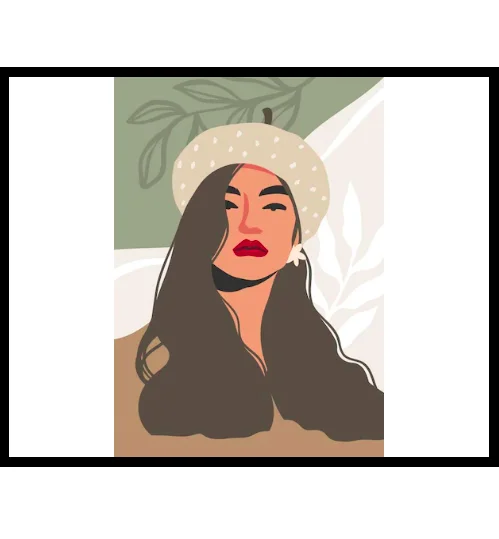
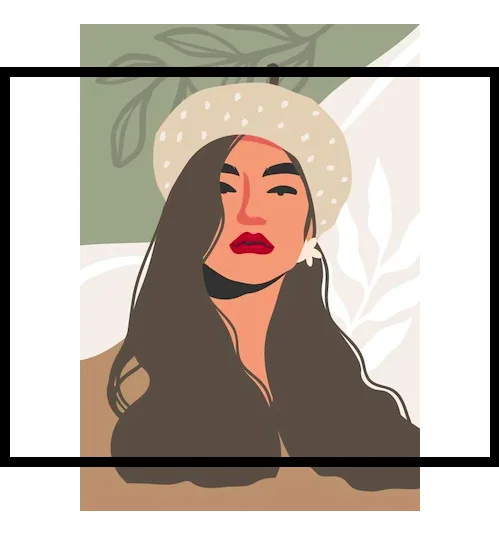


Image Preview
Resize and Frame Your Image
Upload Image
Upload your image by clicking 'Browse' or dragging and dropping it into the designated area.
Set Frame Dimensions
Enter your desired frame width and height in pixels, centimeters, or inches. Choose 'Fit' as the resizing method to automatically adjust the image to fit within the specified dimensions.
Preview Image Frame
Preview the result by clicking 'Preview' to see how the image will look within the frame. Adjust brightness, contrast, saturation, and hue if needed.
Download Resized Image
Once satisfied, click 'Download' to save the resized image with white borders.
Fit Images to Standard Frame Sizes
Adjust your image to fit passport, ID card, or custom frame requirements. The "Fit Image to Frame" tool resizes your photo to match specified dimensions, adding white borders when necessary for a polished appearance. Define frame size in pixels, centimeters, or inches to achieve the exact image needed for your purpose.
Precise Image Resizing with Custom Borders
Resize images to fit specific frames or borders, such as mounting prints or creating uniform layouts. Adjust dimensions to match desired frame sizes, preventing distortion and ensuring a clean final result. Specify the frame dimensions, and the tool will handle resizing and border adjustments.
Frequently Asked Questions
How do I resize my image to fit a specific passport photo size?
Select 'Passport' from the preset sizes. The tool will automatically resize your image to the standard passport dimensions.
Can I resize my image to a custom size in centimeters?
Yes, you can. Enter your desired width and height in centimeters under 'Custom Size'.
I need to fit my image into a frame that's 10cm x 15cm. How do I do that?
Enter '10' for width and '15' for height in the 'Custom Size' section. The tool will resize your image to fit perfectly within those dimensions and add borders if needed.
What file formats can I use with this tool?
This tool supports common image formats such as JPG, PNG, and more. You can also convert your image to a different format during the resizing process.
How do I add white borders around my image when resizing?
When you define the frame size, the tool will automatically add white borders if your image is smaller than the frame dimensions. Adjust the dimensions to control the border thickness.