Resize Photo Without Stretching Online
Resize photo without stretching while preserving proportions. Adjust dimensions, file size, and rotation settings to fit specific needs. Maintain image quality with customizable options for passports, social media, and exams. Fine-tune brightness and contrast for optimal results before downloading.
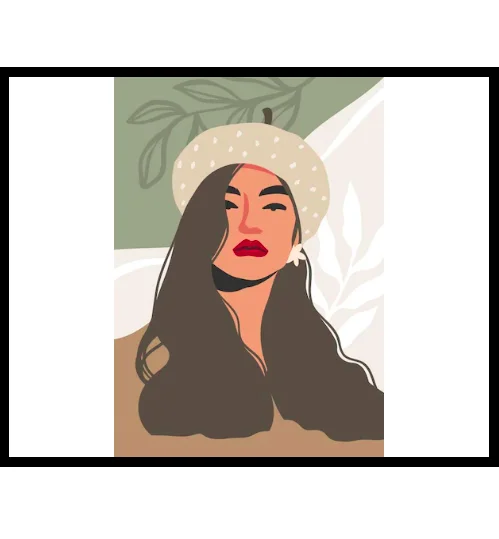
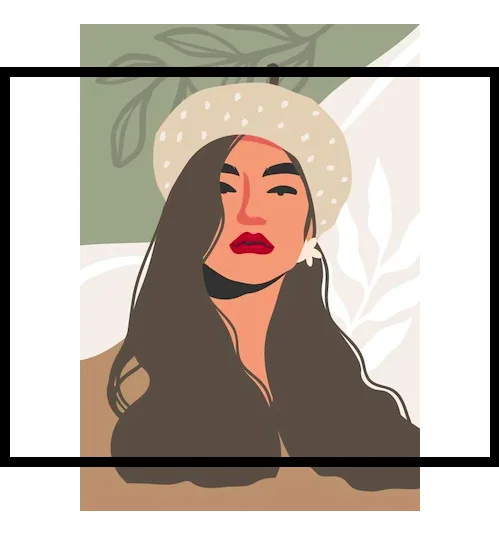
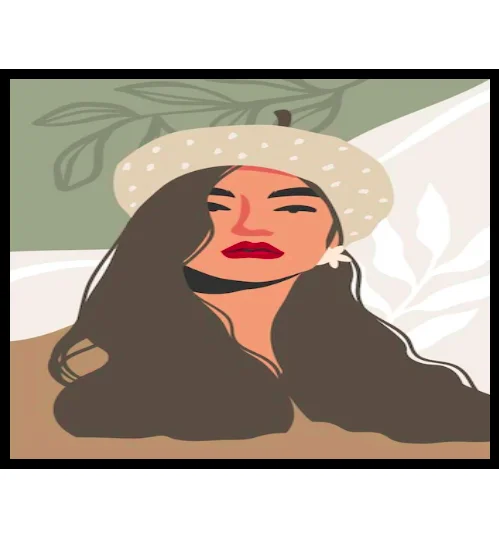
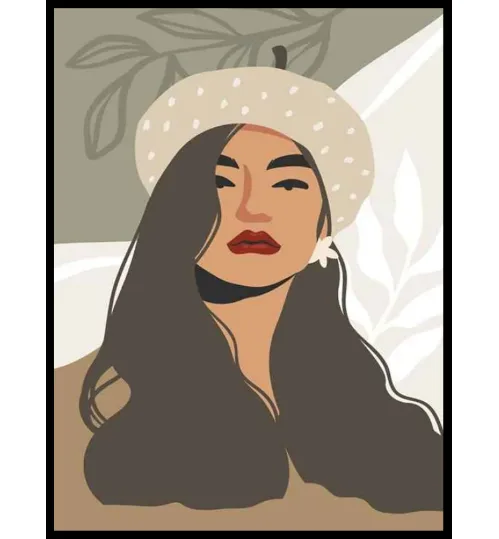
Image Preview
Resize Photos Right: A Simple Guide
Upload Your Photo
Upload your photo by clicking 'Browse' or dragging and dropping it onto the upload area.
Set Size
Choose a preset size from the 'Standard Size' options (e.g., 'Passport,' 'Instagram Post,' 'Amazon') or enter custom dimensions in the width and height input fields. Select a resizing method (Fit, Crop, Stretch, or Original) and adjust DPI as needed.
Adjust Image Settings
Fine-tune your image by adjusting brightness, contrast, saturation, and hue using the sliders. Preview your changes by clicking the 'Preview' button to view the image in a modal window.
Download Resized Image
Select your desired file format (JPG, PNG, or WEBP) and choose a maximum file size. Click the 'Download' button to save the resized image.
Preserve Image Quality When Resizing
Resize photos for passports, social media, or exams without losing clarity. Our tool preserves image quality during resizing, preventing distortion or pixelation. Achieve consistent quality with adjustable settings and predefined size options.
Fine-tune Brightness and Contrast
Fine-tune Brightness and Contrast adjusts image appearance during resizing to maintain visual quality. This helps prevent photos from appearing dull or overly bright after adjustments, resulting in a more refined output. Modify settings to align with specific needs, ensuring resized images retain clarity and detail.
Frequently Asked Questions
What file formats can I resize?
You can resize most common image formats including JPG, PNG, GIF, and more. The tool will automatically convert to your desired format during the resizing process.
How do I resize my photo for a passport?
Simply select the 'Passport' preset size. The tool will automatically adjust the dimensions to the correct passport photo size. You can further fine-tune the image using the adjustment sliders.
Can I resize my photo to a specific size in centimeters or inches?
Yes! You can enter custom dimensions in centimeters, inches, or pixels. This gives you precise control over the final size of your image.
I need to reduce the file size of my image. How can I do that?
Use the 'File Size' option. Specify the desired file size in kilobytes (KB), and the tool will automatically adjust the image quality to meet that requirement.
How do I crop and resize my image at the same time?
Use the crop tool to define the area you want to keep. Then, resize the cropped image to your desired dimensions. You can preview the changes before downloading.