Reduce Image Contrast
Adjust your image's contrast to reduce visual intensity. Use intuitive sliders to adjust brightness and contrast levels for optimal visual clarity. Save your adjusted image or review the changes in real-time before finalizing. reduce-image-contrast helps maintain detail while enhancing readability for digital or print use.
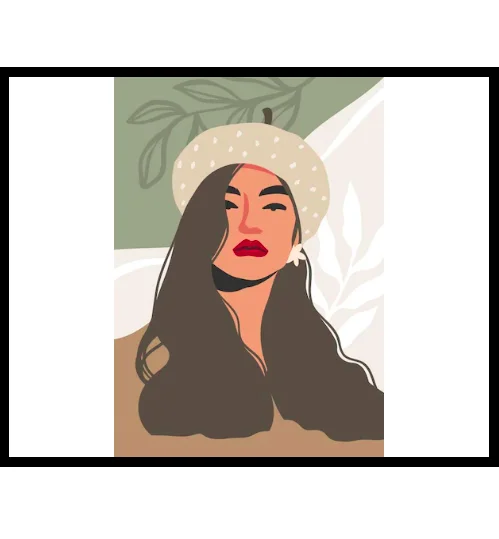
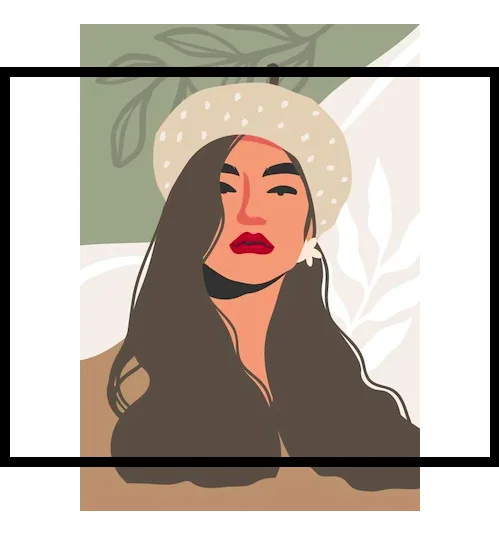
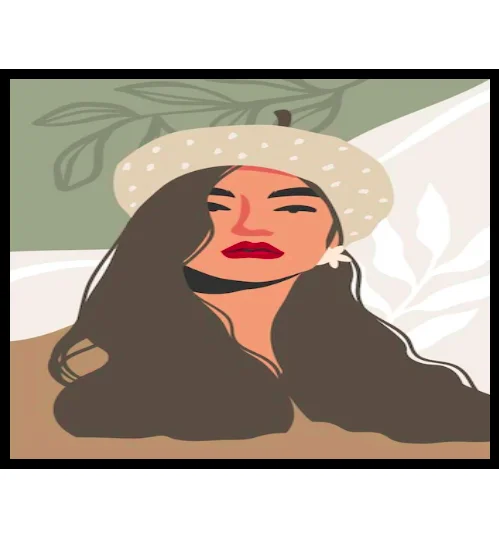
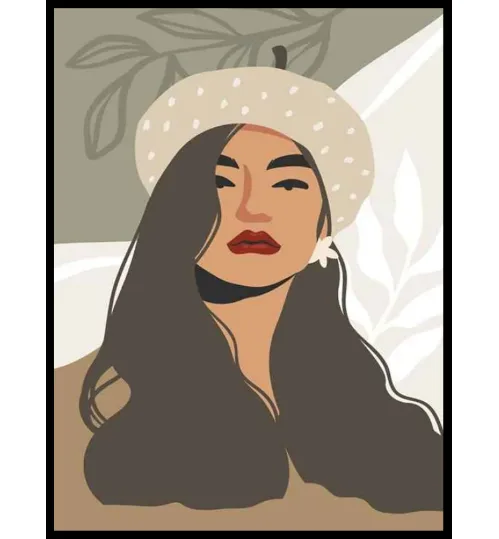
Image Preview
Adjust Image Contrast
Upload Your Image
Upload your image by clicking 'Browse' or dragging and dropping it into the designated area.
Adjust Contrast
Adjust the brightness, contrast, saturation, and hue using the provided sliders until you achieve the desired look.
Preview Changes
Preview your changes by clicking the 'Preview' button to see how the image will appear.
Download Image
Once satisfied, click the 'Download' button to save your modified image.
Perfect Your Photo's Brightness and Contrast
Adjust brightness and contrast to enhance visual impact. Fine-tune settings to match your desired aesthetic, allowing precise control over image tone and detail retention. Use these adjustments to achieve a refined, professional appearance in your final output.
Enhance Your Image's Tone and Vibe
Photos may appear dull or overly bright. The contrast adjustment tool helps refine these issues by enhancing details and improving visual appeal. Adjust the slider to balance contrast and optimize image quality for better detail retention.
Frequently Asked Questions
How do I adjust the contrast of my image?
Use the contrast slider on the tool. Move the slider to the right to increase contrast and to the left to decrease it. Preview the changes to see the effect.
Can I see the changes I'm making before downloading?
Yes! The tool provides a preview feature. After adjusting brightness and contrast, click the preview button to view the modified image before downloading.
What file formats does this tool support?
The tool supports common image formats like JPG, PNG, and others. You can convert and adjust your images regardless of the original format.
Is this tool free to use?
Yes, this online image contrast adjustment tool is free to use. Simply upload your image and start adjusting.
Can I adjust brightness as well as contrast?
Yes, in addition to contrast, you can also easily adjust the brightness of your image using the provided brightness slider.