Reduce Image Saturation
Reduce image saturation to adjust color intensity. Use a slider to lower vibrancy and achieve a more subdued appearance. Preview changes in real-time to refine visual balance. Ideal for editing photos to match specific styles or enhance professionalism.
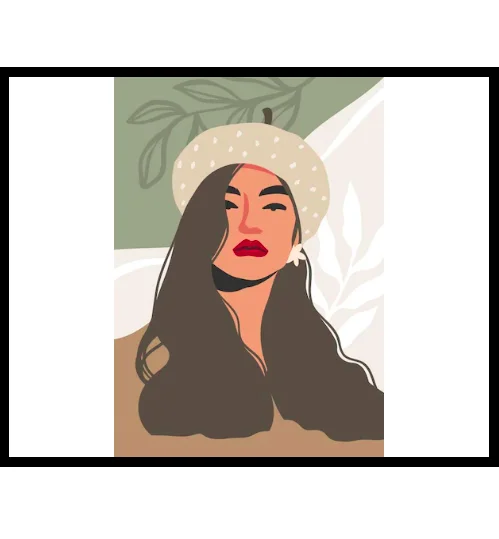
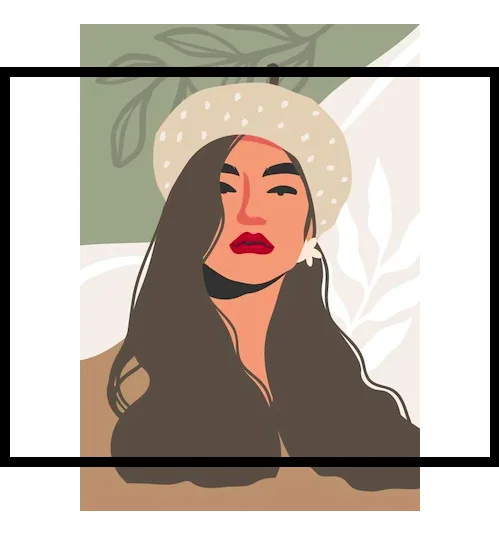
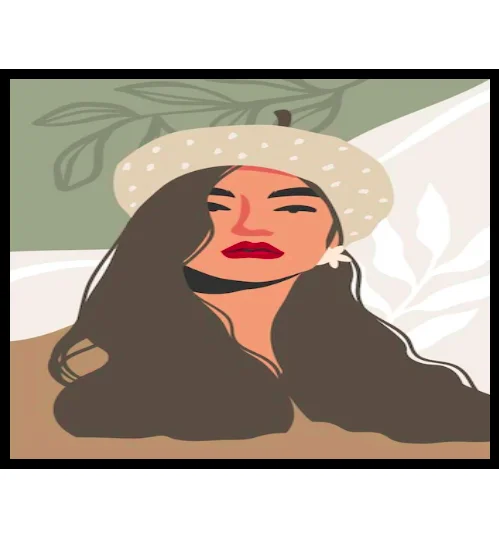
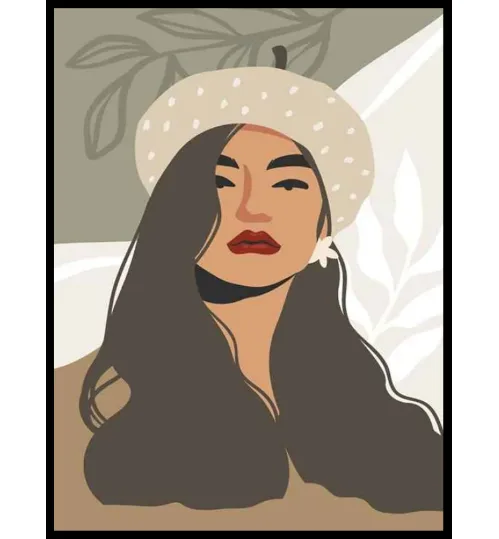
Image Preview
Adjust Image Saturation
Upload Your Image
Upload your image by clicking 'Browse' or dragging and dropping it into the designated area.
Adjust Saturation
Adjust the 'Saturation' slider to reduce or increase the color intensity of your image. Observe the preview to see the effect in real-time.
Choose Resizing Method
Select your desired resizing method from 'Fit', 'Crop', 'Stretch', or 'Original' to fine-tune the appearance of your image.
Download Modified Image
Click 'Download' to save the modified image with reduced saturation.
Subtle Color Adjustments for Photos
Refine color intensity to balance overexposed areas and enhance muted tones. Adjust saturation levels for a more professional appearance. Use intuitive sliders to modify color balance and preview adjustments in real-time. Ideal for correcting color imbalances or achieving a more natural visual tone in images.
Control Image Vibrancy Easily
Photos may sometimes appear overly intense or lack visual appeal. The saturation tool allows you to adjust color intensity, helping to create more balanced and visually appealing images. Use a simple slider to achieve a more subtle or dramatic effect.
Frequently Asked Questions
What does reducing image saturation do?
Reducing image saturation desaturates your photo, making the colors appear less vibrant and more muted. It's useful for creating a vintage look, softening harsh colors, or creating a more subtle aesthetic.
How do I use the saturation adjustment tool?
Simply move the saturation slider to the left to reduce saturation or to the right to increase it. You'll see a live preview of the changes as you adjust the slider.
Can I use this tool for black and white conversions?
Yes! By moving the saturation slider all the way to the left, you can effectively convert your image to grayscale or black and white.
What types of images work best with saturation adjustments?
This tool is great for all types of images, from portraits and landscapes to product photos. It's especially useful when you want to tone down overly bright colors or create a specific mood.
Is there a limit to how much I can reduce or increase saturation?
You can adjust the saturation significantly in either direction. However, extreme adjustments may result in a distorted or unnatural look. Experiment to find what looks best for your image.